
Run your lead-gen AI for free with a local model
A plain setup guide for running the AI on your own machine: which tool to use, which model fits your RAM, and how to point an app at it. No API bill, no data leaving your laptop.
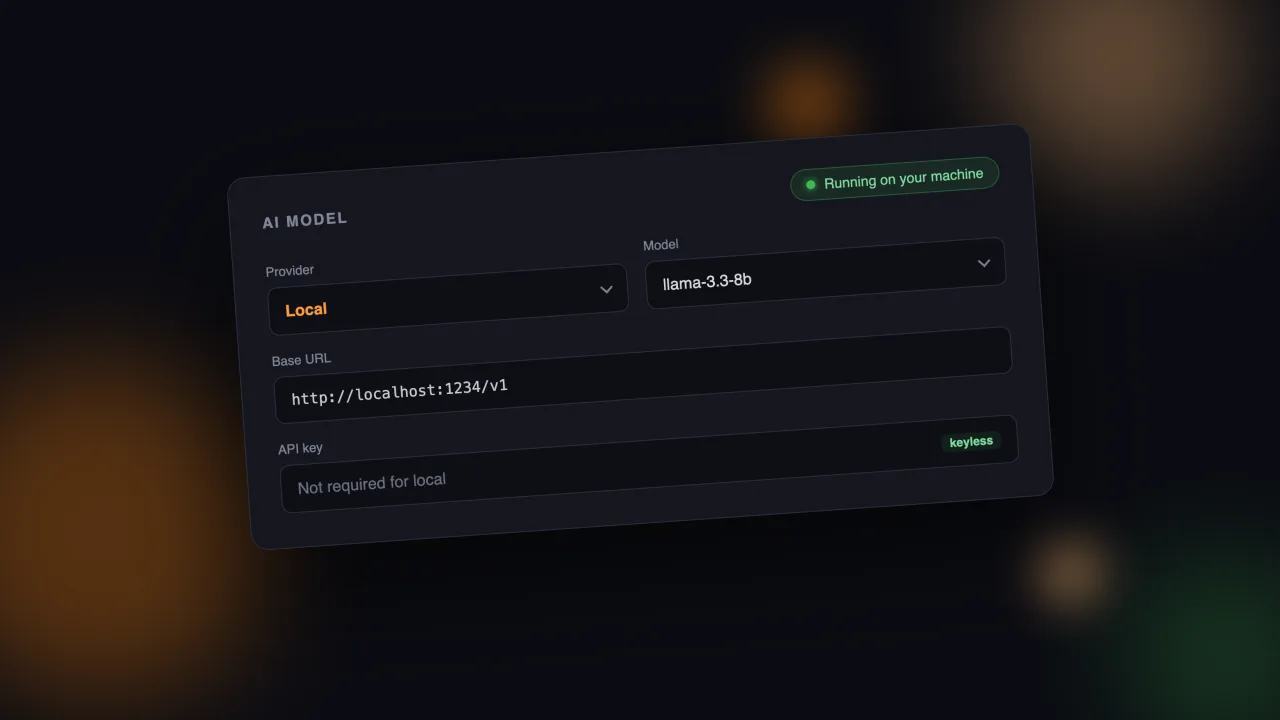
Most AI tools quietly assume you’ll pay a hosted provider by the token. For a lot of work that’s fine. But scoring Reddit threads and drafting replies is not frontier-level reasoning. It’s reading, classifying, and writing a short paragraph, and a model running on your own laptop can do all of it. For free, after the download, with nothing ever leaving your machine.
If you’ve never run a model locally, this is the whole setup, start to finish. It takes about fifteen minutes and costs nothing.
Why local is a genuinely good fit here
Two reasons, beyond the obvious “it’s free.”
The first is privacy. The description of who you sell to, the leads you find, the replies you draft, all of it stays on your computer instead of being posted to someone’s API. If you care about not handing your customer research to a third party, this is the clean way to do it.
The second is that the task doesn’t need a giant model. Judging whether a thread is a fit for your product, and writing a first-draft reply, sits comfortably inside what a small 7-billion-parameter model does well. You’re not asking it to prove a theorem. You’re asking it to read a comment and tell you if the person sounds like a buyer. Local models are good at that now in a way they simply weren’t two years ago.
Step 1: pick a tool
There are two obvious ways in, and the right one depends on how you feel about a terminal.
- LM Studio is a desktop app. You install it, browse models in a store-like interface, click download, and chat. If you’ve never done this before, start here. You’ll spend your time trying prompts instead of reading docs.
- Ollama is command-line first. You type
ollama run llama3.3and it handles the rest. It’s built to sit quietly in the background as a server that other apps talk to, which makes it the better pick once you want a tool driving the model for you.
Plenty of people install both: LM Studio to explore and test, Ollama to actually run the thing day to day. But you only need one to start.
Step 2: pick a model for your machine
The one number that matters is how much RAM you have. Match the model to it, use a 4-bit quantized version (look for Q4_K_M in the file name) to keep the memory footprint down, and you’re set.
| Your RAM | Start with | Notes |
|---|---|---|
| 8 GB | Mistral 7B, or Phi-4-mini (3.8B) | Uses about 6 to 7 GB while running. Mistral’s download is only ~4 GB. |
| 16 GB | Llama 3.3 8B, or Qwen 2.5 7B | The comfortable all-rounders. Llama is the most-recommended starting point in 2026; Qwen is a touch sharper at reasoning. |
| 32 GB or more | A 14B model or larger | Slower, but noticeably better on the ambiguous threads where fit is a judgment call. |
On speed: a 7B model runs at roughly 10 to 25 tokens a second on a normal CPU, and 50 to 80 on Apple Silicon. Fast enough that scoring a batch of threads feels fine. If your machine is older or tight on memory, start with the smallest model on the list and move up only if the quality isn’t there.
Step 3: turn on the local server
This is the step people miss. The model has to be running as a server for another app to reach it.
- In LM Studio, load a model, then open the “Local Server” tab and hit Start. It’ll show you an address, usually
http://localhost:1234/v1. That address is an OpenAI-compatible endpoint, which is the important part. - With Ollama, the server starts on its own the moment Ollama is running, at
http://localhost:11434/v1. Nothing to click.
“OpenAI-compatible” is the magic phrase. It means any tool built to talk to OpenAI can talk to your local model instead, just by pointing at a different address. No special integration required.
Step 4: point your app at it
Because the endpoint speaks the OpenAI dialect, connecting an app is usually three fields:
- Base URL: the local address from step 3 (
http://localhost:1234/v1orhttp://localhost:11434/v1). - API key: leave it blank, or put any placeholder. A local server isn’t checking one.
- Model: the name of the model you loaded (for example
llama-3.3-8borqwen2.5:7b).
That’s the entire connection. The app sends its requests to your machine instead of to a paid provider, and the token meter never moves because there’s no meter.
The tool I work on is built for exactly this. Set the provider to Local, paste the base URL, and it runs against your own model with no key and no data leaving the building. You can even point one brand at a local model and another at a hosted one, if you want a cheap default and a stronger option on hand. Full disclosure that it’s my product, but the setup above works the same with anything OpenAI-compatible.
When to just pay for a hosted model instead
Local isn’t always the right call, and it’s worth being honest about that.
If your laptop is old or low on memory, a small local model can feel sluggish or produce weaker drafts, and a few dollars of hosted usage will be smoother. Hosted frontier models are also still better at the genuinely hard judgment calls. A reasonable middle path is to run a local model for the bulk scoring, where volume matters and the decisions are easy, and keep a cheap hosted key around for the drafts you actually plan to send.
But if you’ve got a recent machine with 16 GB of RAM sitting mostly idle, there’s little reason not to use it. The model is free, the privacy is real, and the only cost is the fifteen minutes it takes to set up.
Once it’s running, the rest of the work is the same as ever: find the threads where people are describing your problem, and show up like a person. The model just reads faster than you do.
Want to try it on your own market?
Leadiver finds warm leads on Reddit and YouTube, scores them against your customer, and drafts the first reply. It browses like a real person, not an API call.
Get early access